Install Container Desktop
This page contains information about system requirements and instructions to install, update, and uninstall Container Desktop.
Overview
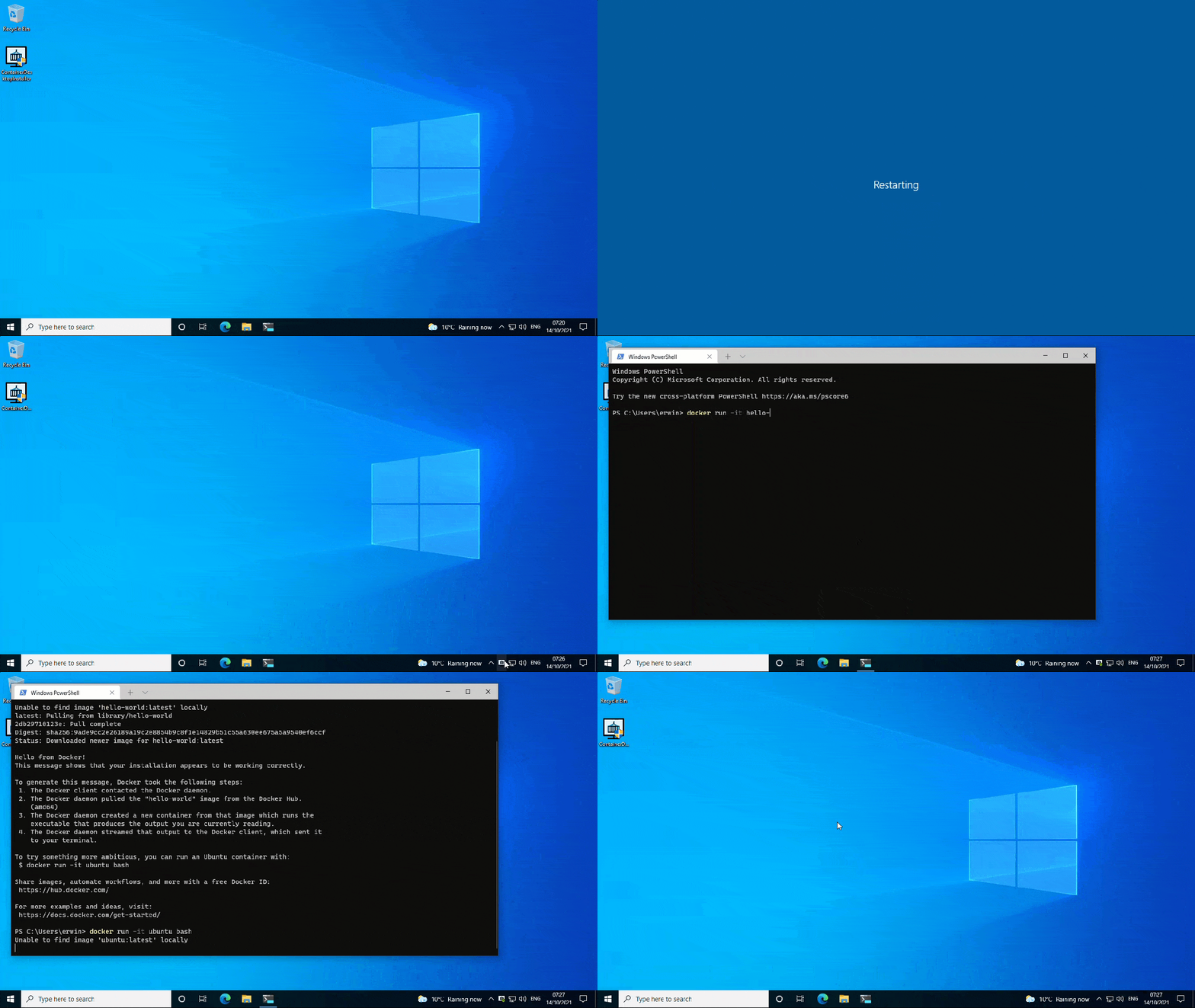
System Requirements
Container Desktop requires WSL2, which is supported on these Windows versions:
- Microsoft Windows 10, Version 1903 with Build 18362.1049 or higher
- Microsoft Windows 10, Version 1909 with Build 18363.1049 or higher
- Microsoft Windows 10, Version 2004 or higher (20H2, 21H1, 21H2, …)
- Microsoft Windows 11, any version or build
WSL2 requires Virtualization Extensions (Intel VT-x/EPT or AMD-V) to be enabled in the BIOS of the physical machine, or in your virtual machine configuration. More details on how to enable Virtualization Extensions for popular Windows desktop virtualization products:
If you currently have Docker Desktop installed, you need to either quit Docker Desktop if you want to try out Container Desktop, or uninstall Docker Desktop if you are convinced that Container Desktop is a suitable replacement. Container Desktop can be installed alongside Docker Desktop, but both cannot be active at the same time, as they share the same named-pipe interface for clients to connect to (the Docker CLI and Docker Compose CLI).
Install and Run Container Desktop
- Download the latest ContainerDesktopInstaller from GitHub Releases. Optionally, you can validate the file checksum against the values in sha256sum.txt with the following PowerShell command:
Get-FileHash .\ContainerDesktopInstaller.exe -Algorithm SHA256 - Double-click ContainerDesktopInstaller.exe to run the installer.
- User Account Control will prompt you to approve the installation — select Yes.
- Select your installation options. By default the following options are selected: Create Start Menu Shortcut, Start application when Windows starts, and Run application after installation finished.
- Select Install to start the installation.
Note: Windows Defender SmartScreen may pop up and prevent ContainerDesktopInstaller.exe from starting. When this happens, select More Info and then Run Anyway.
Unattended Installation
The unattended installation option provides a convenient way to install without manual intervention. An unattended installation can be performed with the following command-line option:
ContainerDesktopInstaller.exe install --unattended
Unattended DNS mode settings: To configure the DNS mode during unattended installation, see DNS Mode Examples for Unattended Installations.
Upgrade Container Desktop
If a new version of Container Desktop is available, run the new installer (ContainerDesktopInstaller.exe) to upgrade the current installation.
Uninstall Container Desktop
Important: Uninstalling Container Desktop will remove the container-desktop-data WSL2 distribution. This will destroy all Docker containers, images, and volumes, and remove any files generated by containers or applications on the local machine. If you want to upgrade to a newer version, run the installer instead of uninstalling — you will not lose any data.
To uninstall Container Desktop:
- From the Windows Start menu, select Settings > Apps > Apps & features (or search for Add or Remove Programs).
- Select Container Desktop from the app list, then select Uninstall.
- Click Uninstall to confirm.
Container Desktop can also be uninstalled from the command line. When installed, the installer is available at C:\Program Files\ContainerDesktop\:
ContainerDesktopInstaller.exe uninstall
You will be prompted to confirm the uninstallation. Add --quiet to skip the confirmation prompt:
ContainerDesktopInstaller.exe uninstall --quiet
Note: When the above command is run in a PowerShell session, you will be prompted by User Account Control. Uninstalling Container Desktop requires elevated permissions.