Port Forwarding
This page contains information on how to expose containers to an external network using port forwarding.
Port Forwarding Feature
Container Desktop provides a feature to expose containers on a specific network. By default, containers are only accessible on localhost. With the Port Forwarding feature you can bind container ports to a specific network interface, allowing other machines on the same network to access those containers. You will also need to configure the Windows Firewall to allow inbound traffic.
Example Scenario
In this example we will publish an nginx container on HTTP port 80 on an external network interface. The example contains the following steps:
- Run an nginx container on port 80.
- Enable Port Forwarding in Container Desktop.
- Configure the Windows Firewall.
Run Nginx on Port 80
Run an nginx container with the -p argument to publish it on port 80:
docker run -p 80:80 -d nginx
Note: The first part of the
-pvalue is the port on the host; the part after:is the port on the container. If the port is already in use, choose a different host port.
Open your browser and navigate to http://localhost. The default “Welcome to nginx!” page should appear.
Enable Port Forwarding
Select the Port Forwarding option in the Container Desktop system tray application, then select the network interface you want to forward container ports to:
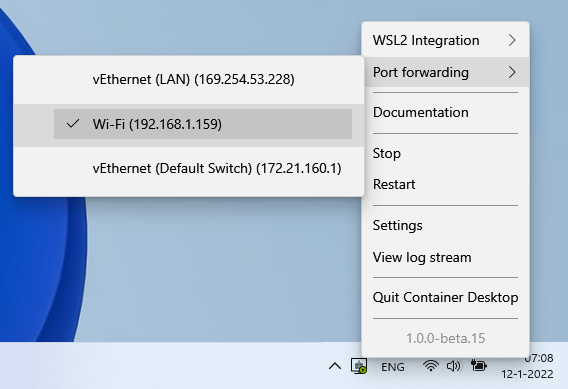
Container Desktop will bind the selected adapter to listen on the published container ports.
Note: All published ports are exposed on the chosen network interface. Be aware of which containers you are exposing to your external network.
Configure the Firewall
To allow external connections, open the Windows Firewall to accept inbound traffic on the used ports.
- Open PowerShell with administrator privileges.
- Create a new firewall inbound rule to accept traffic on port 80:
New-NetFirewallRule -DisplayName "Container-Desktop-Example" -Direction Inbound -Profile Private -Protocol TCP -LocalPort 80
Note: This example uses the Private firewall profile. Depending on your network, you may need to specify a different profile (Domain or Public).
Open a browser on a different machine connected to the same network and navigate to http://<external-ip-address>. The default “Welcome to nginx!” page should appear.
Clean Up
After completing the example, remove the example configuration.
Remove the Firewall Rule
- Open PowerShell with administrator privileges.
- Remove the example firewall rule:
Remove-NetFirewallRule -DisplayName "Container-Desktop-Example"
Disable Port Forwarding
Disable port forwarding in Container Desktop by deselecting the interface in the Port Forwarding option of the system tray application.